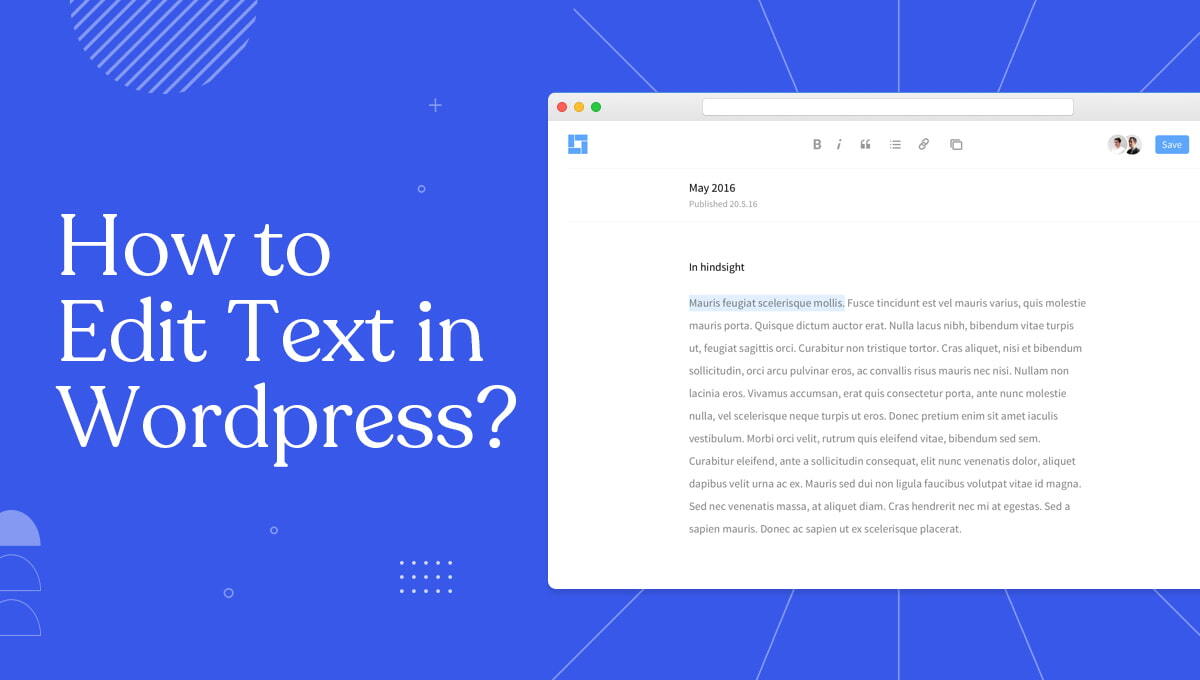
Editing text in WordPress is one of the most essential skills for managing your website. Whether you want to update blog content, fix mistakes, improve SEO, or refresh outdated information, knowing how to edit text efficiently can make a huge difference in your site’s performance.
The good news is that WordPress makes this process simple, even if you have no technical background. Once you understand how the editor works, you can easily update any content on your website within minutes.
Before editing text, it’s important to understand how WordPress handles content. WordPress currently offers two main editing experiences: the Block Editor (Gutenberg) and the Classic Editor.
The Block Editor is the modern default editor. It works by dividing your content into “blocks,” where each paragraph, heading, image, or list is a separate element. This gives you more flexibility and control over your layout.
The Classic Editor, on the other hand, looks more like a traditional word processor. Everything is written in one continuous area, making it simpler but less flexible compared to the block-based approach.
Most websites today use the Block Editor, so it’s important to get comfortable with it.
Editing text in the Block Editor is straightforward once you understand how blocks work.
To begin, log in to your WordPress dashboard and navigate to either “Posts” or “Pages,” depending on where your content is located. Open the page or post you want to edit.
When the editor loads, you’ll see your content divided into blocks. Simply click on the text you want to edit. Once selected, you can type, delete, or modify the text just like you would in any document.
Each block comes with its own toolbar. This allows you to format text by making it bold or italic, adding links, adjusting alignment, or converting it into headings. If you want to add new text, you can insert a new paragraph block by clicking the “+” icon.
One of the biggest advantages of the Block Editor is flexibility. You can easily move text sections up or down, rearrange content, or even transform a paragraph into another format like a list or quote.
After making your changes, click the “Update” button to save them. Your edits will instantly go live on your website.
If your website still uses the Classic Editor, the process is slightly different but even simpler.
Open the post or page you want to edit, and you’ll see all your content in a single text box. Click anywhere in the text and start editing. You can delete, rewrite, or add content just like you would in Microsoft Word or Google Docs.
The toolbar at the top allows you to format text, including headings, bold, italics, lists, and links. Once you’re done editing, click “Update” to save your changes.
While the Classic Editor is easier for beginners, it lacks the flexibility and modern features of the Block Editor.
One common mistake beginners make is editing text without considering formatting and layout. Even small changes can affect how your content looks on the front end.
To avoid this, always preview your changes before publishing. WordPress provides a preview option that shows how your content will appear to visitors. This helps you catch formatting issues, spacing problems, or broken layouts.
It’s also important to maintain consistency. Use the same heading styles, font sizes, and formatting across your content to keep your website professional and easy to read.
Editing text is not just about fixing words—it’s also a great opportunity to improve your SEO.
Search engines like Google analyze your content to determine rankings. When editing, you can naturally include relevant keywords, improve readability, and structure your content better.
For example, breaking long paragraphs into shorter ones improves user experience. Adding headings makes your content easier to scan. Updating outdated information keeps your content fresh and relevant.
If you’re using SEO plugins like Yoast SEO, you can also optimize meta titles, descriptions, and readability scores directly while editing.
Sometimes, you may face issues while editing content. Text may not update, formatting may break, or changes may not appear on the live site.
In most cases, this happens due to caching. Clearing your website cache or browser cache usually fixes the problem. Another common issue is plugin conflicts, especially if you’re using page builders like Elementor.
If formatting looks strange, switching between “Visual” and “Code” view can help identify the issue.
Once you get comfortable with WordPress, editing becomes much faster. Using keyboard shortcuts can speed up formatting, and regularly previewing your content ensures accuracy.
It’s also a good idea to keep your content structured with proper headings and spacing. This not only improves readability but also helps with SEO.
Most importantly, always double-check your changes before publishing, especially on important pages like homepage or service pages.
Editing text in WordPress is a simple yet powerful skill that plays a major role in managing your website effectively. Whether you’re updating blog posts, improving SEO, or refining your content, mastering the editor allows you to keep your site fresh, engaging, and professional.
At WPDepend, we help businesses manage, optimize, and scale their WordPress websites with ease. From content updates to performance optimization, our team ensures your website stays fast, user-friendly, and fully optimized for growth.
You can edit text by logging into your dashboard and opening a post or page. Click on the text area and make your changes using the editor. WordPress provides simple tools for formatting and editing. Once done, click “Update” to save changes.
This issue is often caused by caching problems, plugin conflicts, or limited user permissions. Clearing your cache or disabling conflicting plugins usually resolves it. Also, ensure you have the correct access level. Trying a different browser can sometimes help.
The Block Editor lets you add and manage content using individual blocks like text, images, and videos. The Classic Editor works like a traditional text editor with all content in one area. The Block Editor offers more flexibility and design control. Both are easy to use based on your preference.
Yes, you can edit text anytime, even on a live website. Changes will not appear publicly until you click the “Update” button. This allows you to review edits before publishing. It’s quick and safe to make updates.
Yes, updating text can improve SEO by adding relevant keywords and improving readability. Fresh and optimized content helps search engines rank your page better. It also improves user engagement. Regular updates are beneficial for long-term SEO.
No, WordPress is beginner-friendly and does not require coding skills for basic editing. You can easily update content using the visual editor. Most tasks are done with simple clicks and formatting options. Coding is only needed for advanced customization.

A seasoned technology writer and marketing consultant with over a decade of experience helping businesses grow online. I specialize in content marketing, SEO, web design, and e-commerce development. I am enthusiastic about using cutting-edge technology to acquire high-quality traffic, generate leads, and increase sales for my clients.
